
Warehouse performance hides in the gap between what was planned and what actually moved. Open Inventory Dashboard closes that gap for Odoo 19 with counts of transfers by status and type, a stock move trend line, regional delivery analysis and lot or serial traceability counts — all filterable and all clickable.

What Open Inventory Dashboard does
The dashboard is built on your existing stock transfers and moves. Install it and the analytics reflect the warehouse as it is today.
It is deliberately operational: ready versus waiting versus late transfers, receipts versus deliveries versus internal moves, and who is receiving what — the numbers a warehouse supervisor uses during the day, not only at month end.
Key features
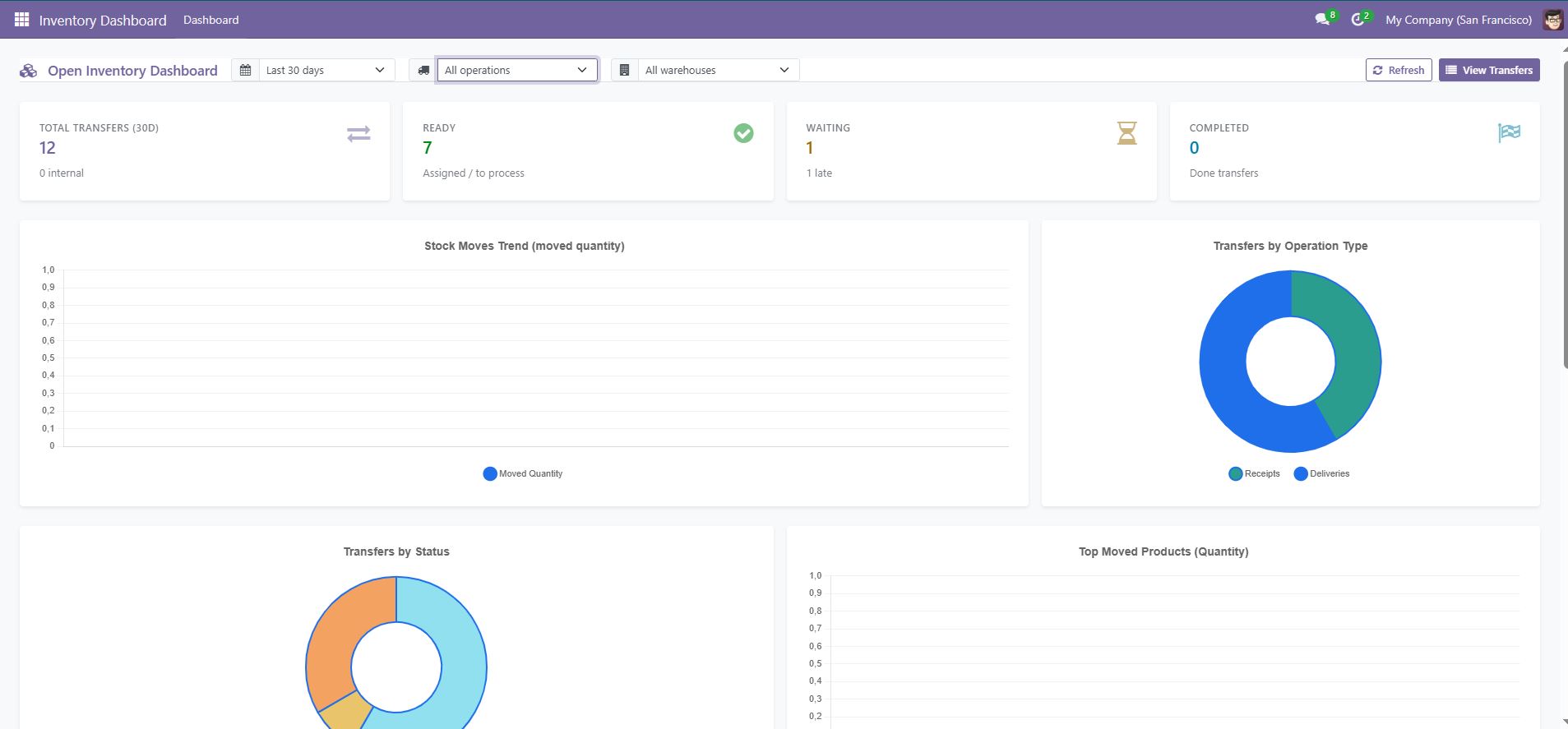
Inventory counts at a glance
Total transfers, ready (assigned), waiting, completed, internal and late — the operational status of the warehouse in one row.
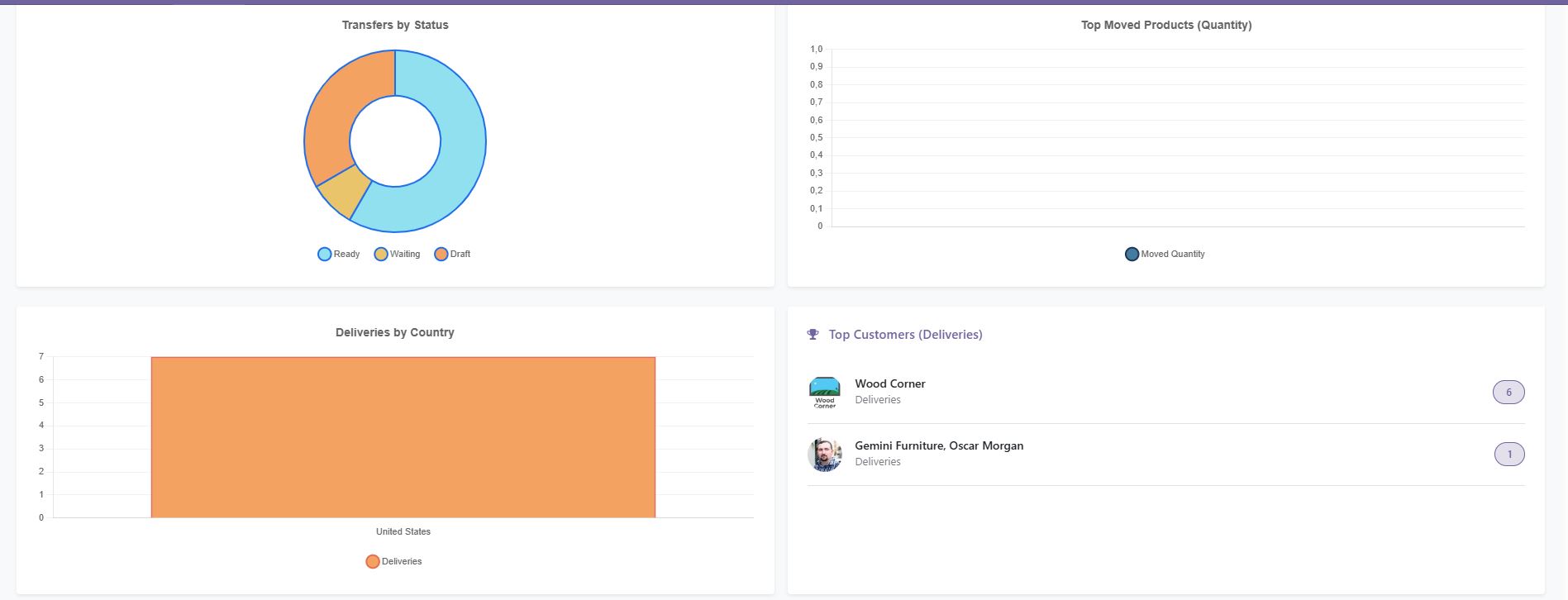
Transfers by operation type and status
Receipts, deliveries and internal transfers broken down by status, so a queue building up in one operation type is obvious.
Stock move trend
A line chart of stock moves over the selected period, which turns throughput into something you can actually discuss.
Top moved and selling products
The references that generate the most movement — the ones worth relocating closer to the picking area.
Deliveries by customer country
Regional analysis of deliveries, useful for logistics planning and for carrier negotiations.
Top customers by deliveries
Customer ranking by delivery volume with quick drill-down, plus a recent deliveries detail table.
Traceability counts
Internal transfer counts and lot or serial traceability counts, so tracked stock is not a blind spot.
Filters and drill-down
Date, operation type and warehouse filters, with drill-down from any figure to the underlying transfers.
Screenshots
How to set it up
Configuration lives in Inventory > Dashboard. The full sequence is:
- Install the module from the Apps menu after adding it to your addons path.
- Open the Inventory application and select the new Dashboard menu entry.
- Pick the period to analyse with the date filter.
- Narrow to a specific warehouse or operation type when you need a focused view.
- Click any count or chart element to open the matching transfers.
Good to know
- Depends on the standard
stockapplication. - Pairs naturally with the low stock email alert module if you also want to be notified about ruptures rather than only see them.
Requirements and compatibility
| Odoo series | Odoo 18.0, Odoo 19.0 |
|---|---|
| Depends on | stock |
| Licence | OPL-1 |
| Edition | Works on Odoo Community |
Where to get it
See Open Inventory Dashboard on buyodoo.com
Browse the full catalogue on the buyodoo.com shop, or contact us if you need help choosing.
Frequently asked questions
Can I filter the dashboard by warehouse?
Yes. Warehouse is a first-class filter, along with date and operation type.
Does it show late transfers?
Yes. Late is one of the headline counts, next to ready, waiting, completed and internal.
Does it cover lot and serial numbers?
It reports lot and serial traceability counts so you can see how much of your activity is tracked stock.
Is Odoo Enterprise required?
No. It depends on stock, base and web, all part of Odoo Community.
Which Odoo versions are supported?
Odoo 18.0 and Odoo 19.0.