
Standard Odoo tells you who has an account. It does not readily tell you who is connected right now, how long their session lasted, or which records they touched. Open User Dashboard adds that layer to Odoo 19 with real-time KPI cards, an online users panel, activity charts and a detailed, filterable log.

What Open User Dashboard does
The module records login sessions and business activity, then presents them as a dashboard rather than as a raw table. Every widget drills down either to the source record or to the activity log entry behind it.
It is aimed at administrators and at anyone responsible for an audit trail: reviewing recent activity, understanding which applications are actually used, and checking behaviour by IP address.
Key features
Real-time dashboard
KPI cards, charts and an online users panel that show the current state of the platform rather than yesterday's export.
Session and login tracking
Login sessions are recorded with an estimated duration, which is what makes usage measurable instead of anecdotal.
Rich filtering
Filter by period, action type, category, application, user and IP address to isolate exactly the slice you are investigating.
Activity charts
Daily activity trend, hourly logins, and distribution by type, category and application — the shape of how your system is used.
Drill-down navigation
Move from a card or a chart directly to the source records or to the activity log entries, without rebuilding the filter by hand.
Detailed activity log
List, form and search views over the log, so an investigation ends in a record rather than in a guess.
Tracked data
Login sessions and online users, messages, emails and notifications, plus create, update and delete operations on business records.
Dedicated security groups
Separate groups for dashboard access and for dashboard management, so visibility itself is a controlled privilege.
Screenshots
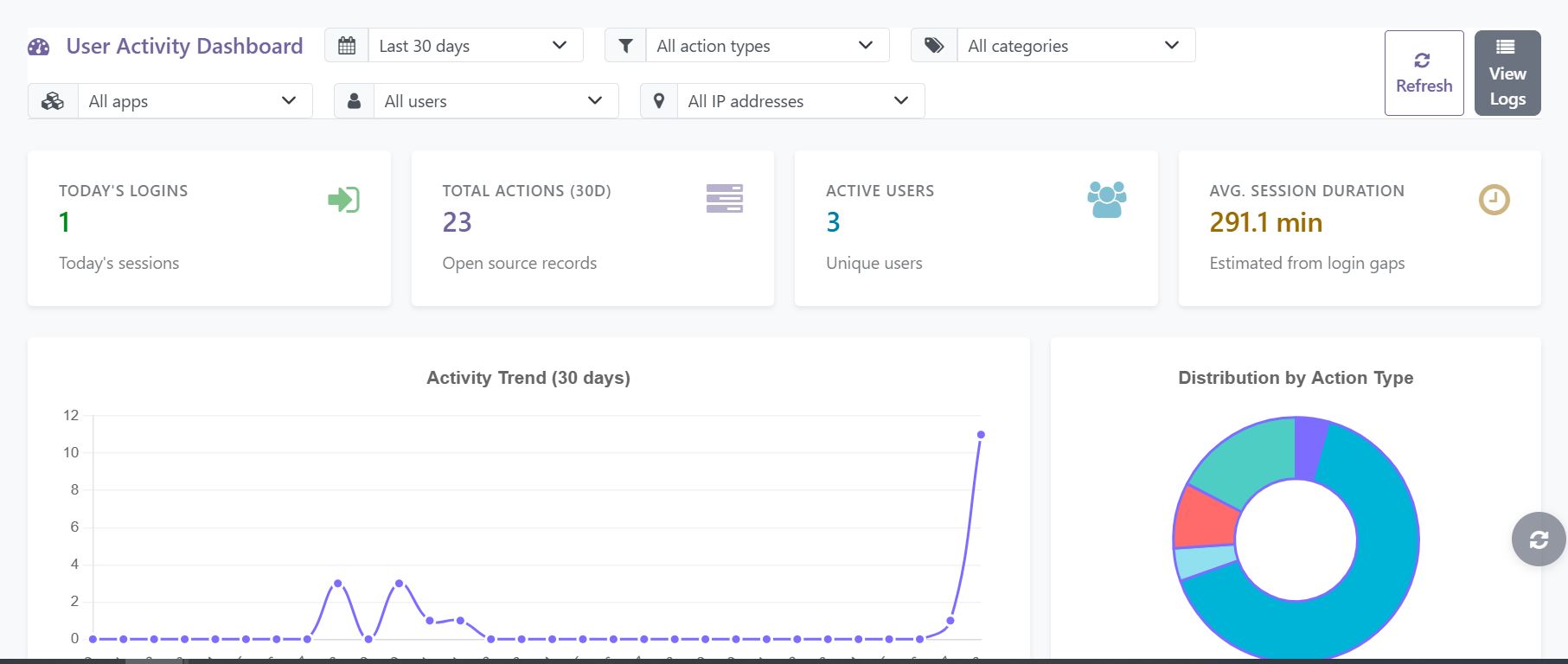
How to set it up
Configuration lives in Settings > User Dashboard. The full sequence is:
- Install the module from the Apps menu after adding it to your addons path.
- Grant the dashboard access or management group to the relevant users in Settings > Users & Companies.
- Open the user dashboard from the Settings application.
- Use the period, application and user filters to focus the analysis.
- Click through any card or chart to reach the source records or the activity log.
Good to know
- Access to the dashboard is governed by its own security groups — activity data is not exposed to every internal user by default.
- Review your local rules on employee monitoring and personal data before enabling activity tracking; what is permitted varies by jurisdiction.
Requirements and compatibility
| Odoo series | Odoo 18.0, Odoo 19.0 |
|---|---|
| Depends on | mail, base_setup |
| Licence | OPL-1 |
| Edition | Works on Odoo Community |
Where to get it
See Open User Dashboard on buyodoo.com
Browse the full catalogue on the buyodoo.com shop, or contact us if you need help choosing.
Frequently asked questions
Can I see who is connected right now?
Yes. An online users panel is part of the real-time dashboard, alongside the KPI cards.
Does it log changes to business records?
It tracks create, update and delete operations on business records, in addition to logins, messages, emails and notifications.
Can I filter activity by IP address?
Yes. IP address is one of the available filters, which is useful when reviewing access from unexpected locations.
Who can see the dashboard?
Only users you place in the module's dedicated access or management groups. It is not visible to all internal users by default.
Which Odoo versions are supported?
Odoo 18.0 and Odoo 19.0.