
Purchasing teams live with three recurring questions: how much did we spend, which vendors absorbed it, and what is still waiting to be billed. Open Purchase Dashboard answers them on one screen in Odoo 19, with colour-coded stage tiles, spend trends and vendor rankings that drill straight down to the orders.

What Open Purchase Dashboard does
The module builds its analytics from your purchase orders and vendor bills. Nothing is duplicated and no extra data entry is introduced.
Its focus is the procurement cycle rather than raw totals: requests for quotation, orders by status, bills that are due, and the gap between what has been ordered and what has been invoiced.
Key features
Key purchase metrics
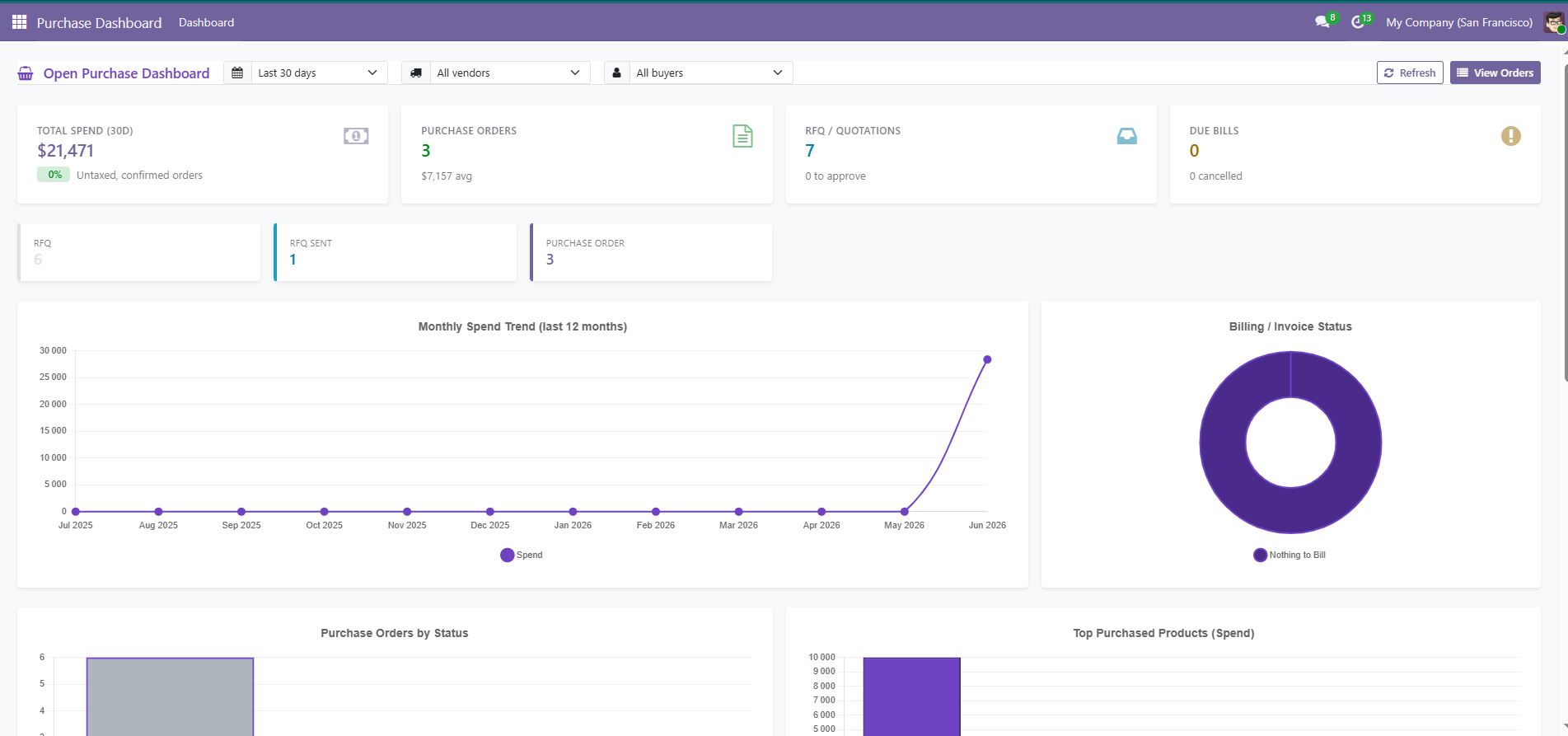
Total spend, purchase orders, RFQs and quotations, due bills and cancelled orders — the header line of any procurement review.
Colour-coded stage tiles
Purchase requests are tracked across stages with tiles that make a bottleneck visible before somebody complains about it.
Orders by status
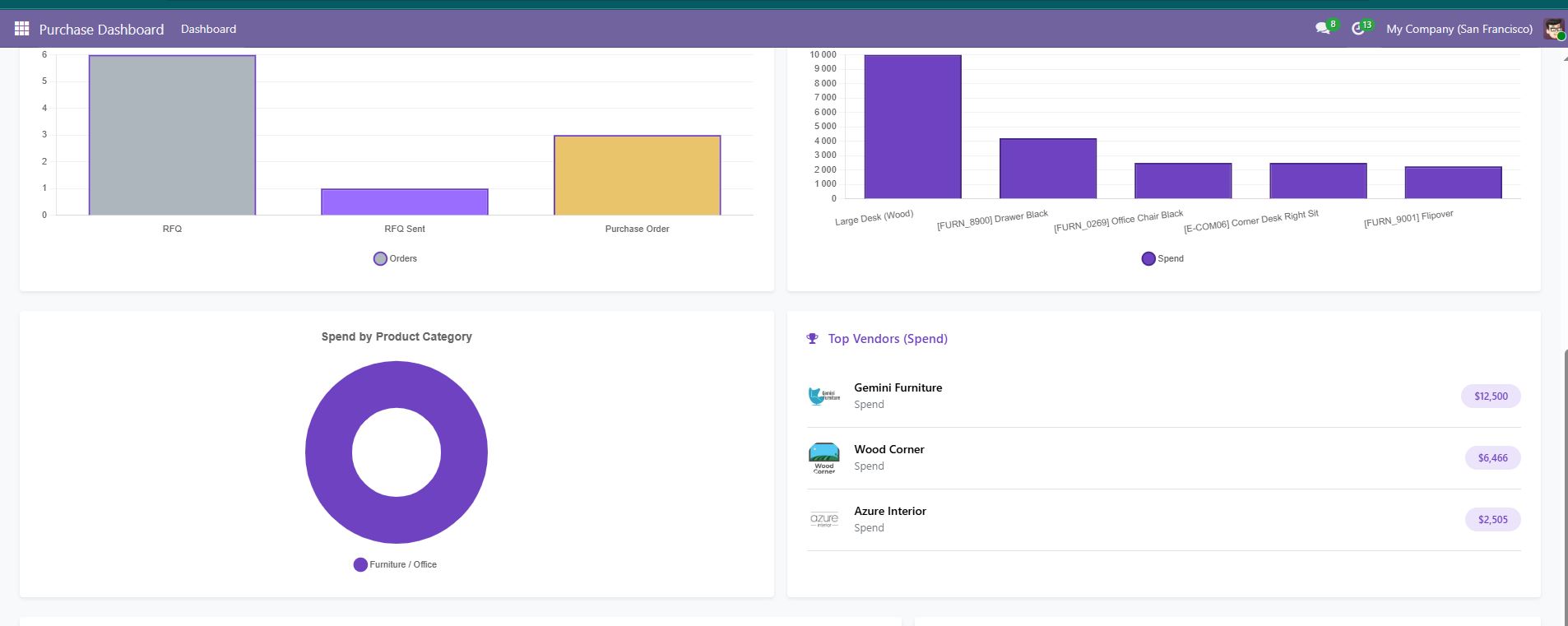
A grouped column chart of purchase orders by status, built for planning and follow-up rather than for decoration.
Billing and invoice status analysis
See where orders sit in the billing cycle, which is what keeps payments timely and supplier relationships calm.
Monthly spend trend with growth
Spend by month, with month-over-month and year-over-year growth, so a spike is immediately comparable to history.
Top products and categories purchased
The products and product categories that consume the budget, ranked — the starting point for any negotiation.
Top vendors by spend
Vendor ranking by spend, which is how concentration risk and volume-discount opportunities become obvious.
Detail tables and filters
Top purchase orders and due bills in detail tables, with date, vendor and buyer filters and drill-down to the orders.
Screenshots
How to set it up
Configuration lives in Purchase > Dashboard. The full sequence is:
- Install the module from the Apps menu after adding it to your addons path.
- Open the Purchase application and use the new Dashboard menu entry.
- Choose the analysis period with the date filter.
- Filter by vendor or by buyer to review a specific supplier or a specific team member.
- Click a tile, a chart segment or a table row to open the underlying purchase orders or bills.
Good to know
- Depends on the standard
purchaseapplication — no enterprise module required. - Included in the Open All Dashboards bundle alongside the sales, inventory and user dashboards.
Requirements and compatibility
| Odoo series | Odoo 18.0, Odoo 19.0 |
|---|---|
| Depends on | purchase |
| Licence | OPL-1 |
| Edition | Works on Odoo Community |
Where to get it
See Open Purchase Dashboard on buyodoo.com
Browse the full catalogue on the buyodoo.com shop, or contact us if you need help choosing.
Frequently asked questions
Can I see which vendors take the largest share of spend?
Yes. A dedicated top vendors by spend ranking is part of the dashboard, and clicking a vendor drills into their orders.
Does it show bills that are not yet paid?
Yes. Due bills appear both as a KPI and as a detail table, and the billing status analysis shows where each order sits in the cycle.
Is Odoo Enterprise required?
No. The module depends on purchase, base and web, all available in Odoo Community.
Can I restrict the dashboard to one buyer?
Yes. Buyer is one of the available filters, alongside date and vendor.
Which Odoo versions are supported?
Odoo 18.0 and Odoo 19.0.